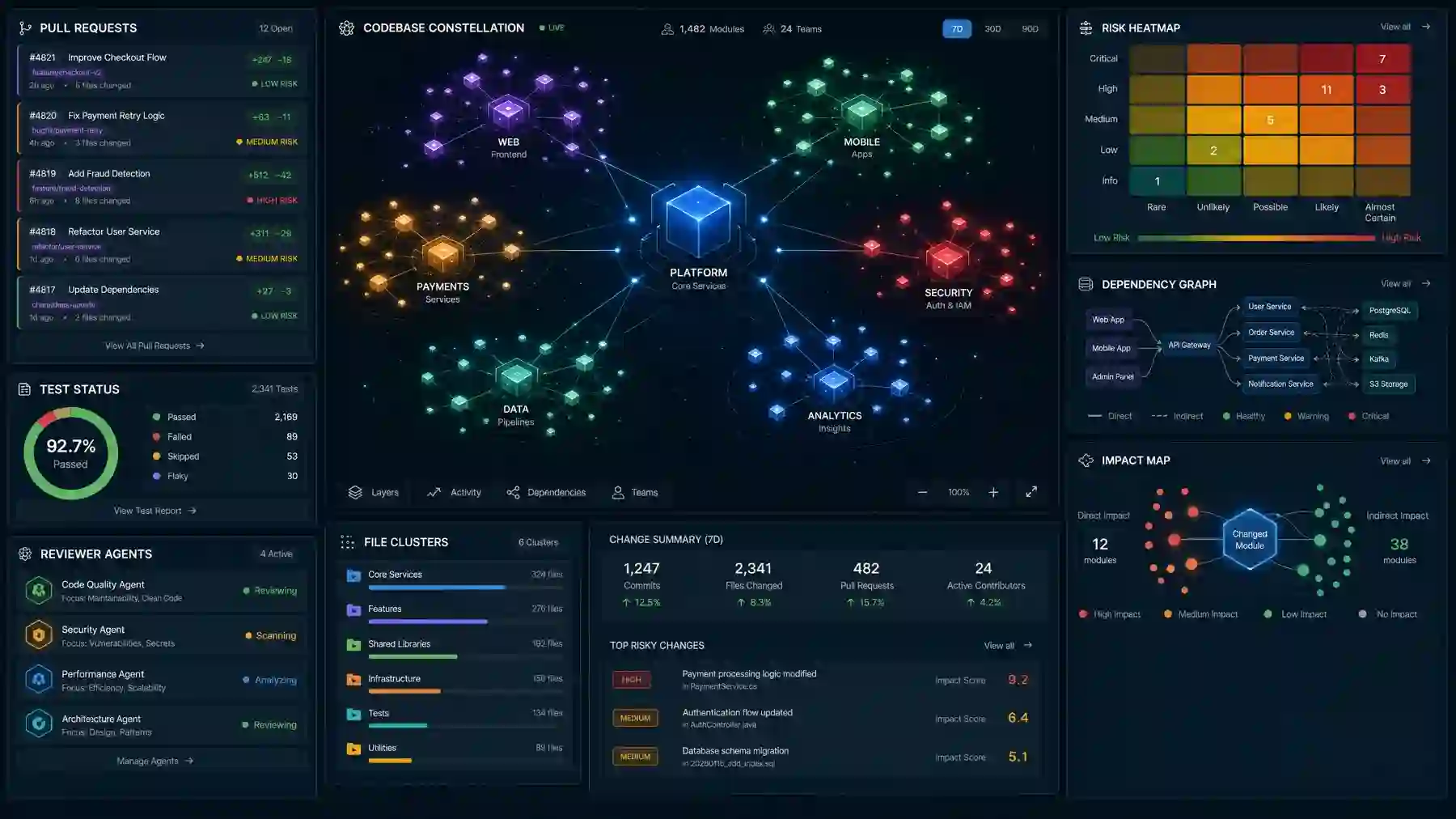
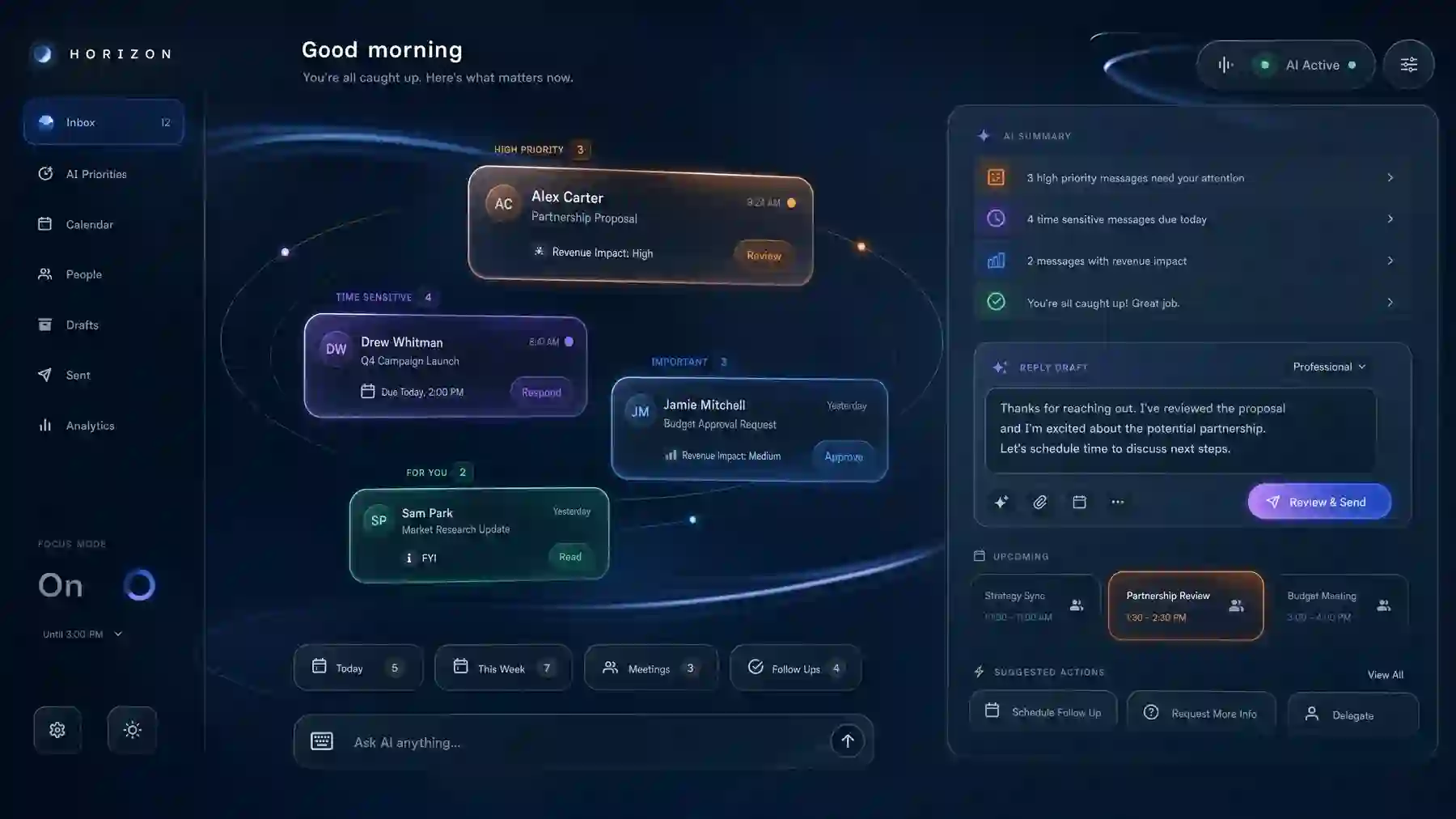
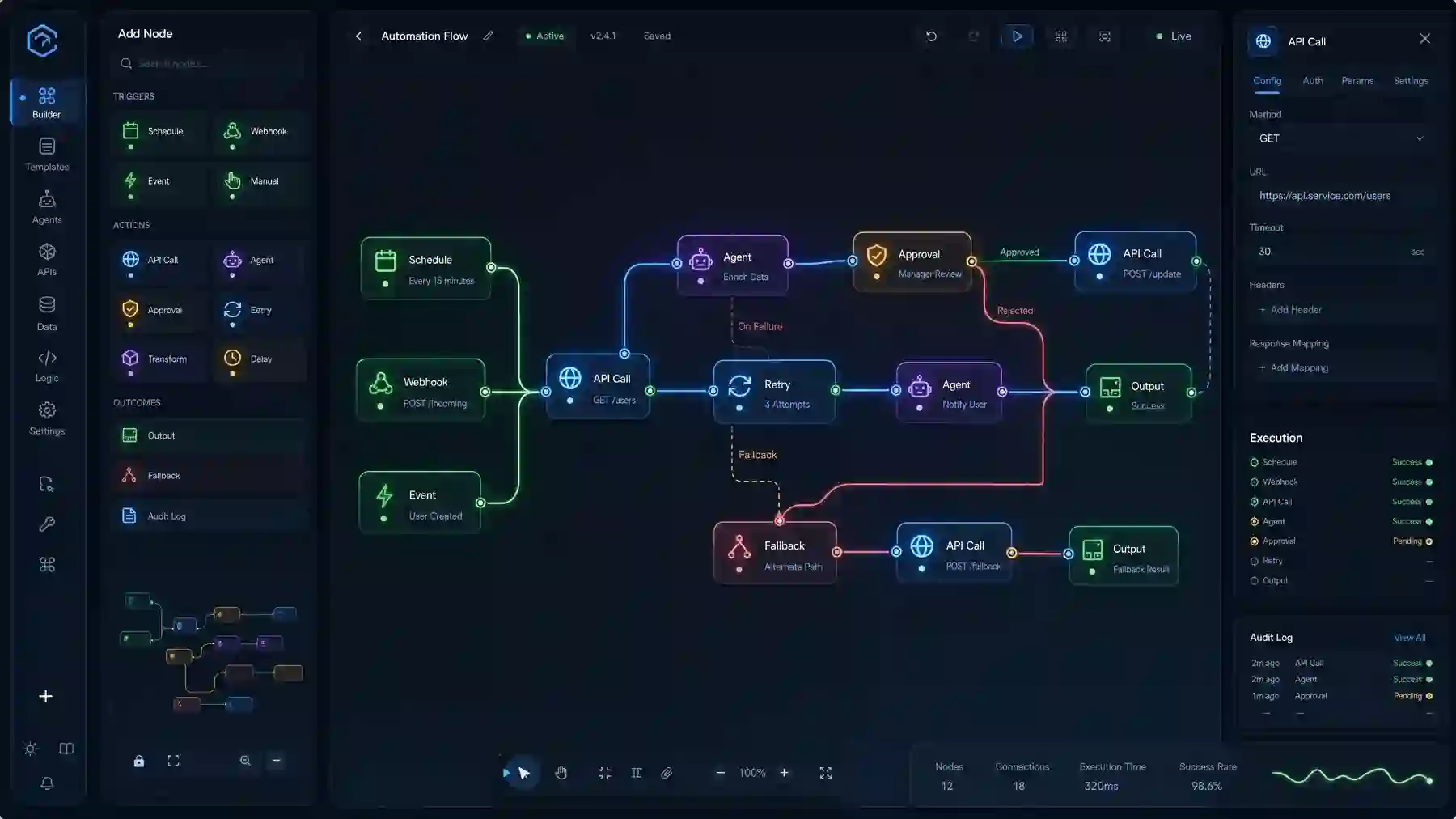
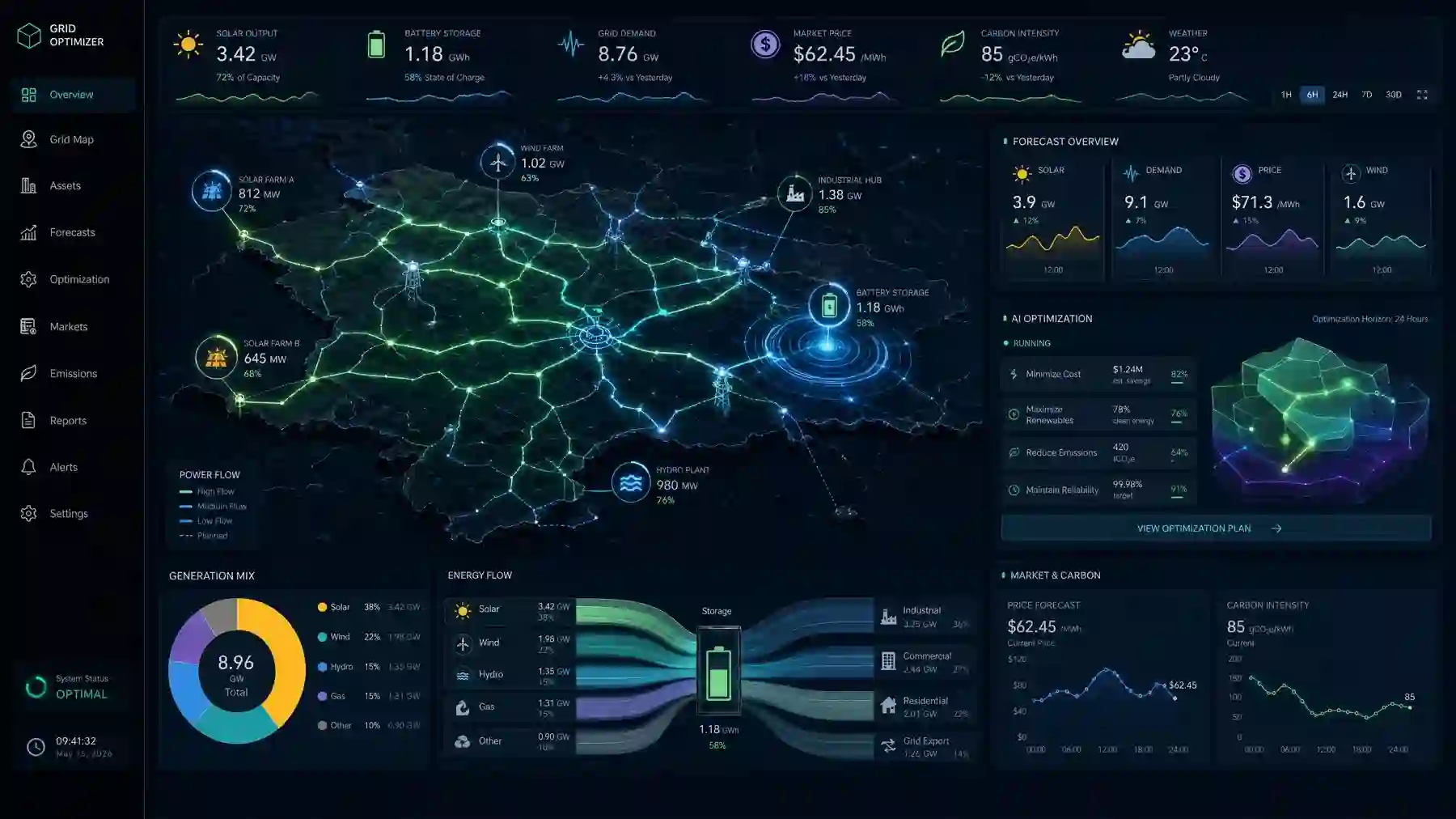
Eight back-office interfaces: approval queues, operations consoles, support triage desks and the workflow screens between them. Each one shows where the roles, the audit trail and the bulk actions sit, before anyone writes the first query.
Three fields and an optional budget range, no modal and no calendar. Say which queue your team clears by hand today and which of the examples below is closest, and Stas Sorokin, who founded Bles Software and runs the builds, comes back with the first screen worth building and what it takes.
The audit under the examples stays open too. This is the same form the homepage uses, with its fields already on the page.
Tell us the workflow
Internal tools, not dashboards
These are the screens support and ops teams work in all day.
An admin panel is not a report. The people in it are not browsing: they are clearing a queue, correcting a record and answering a customer who is waiting. These examples show what that looks like as an interface, including the parts a demo usually leaves out, like the approval queue, the audit trail, the bulk action and the role that decides which of them you can reach at all.
Drawn for the teams that run the work: support, operations, finance, delivery and engineering.
Useful while you are still deciding what your own internal tool should be, before a build starts.
Each one names the workflow behind it, so a conversation can start with roles, records and integrations.
Before the first screen
What an internal tool has to get right.
A back-office tool is judged on six things, and none of them is the colour palette. This is the list we walk through when we scope one, in the order the questions usually arrive.
Roles and permissions
01
Decide who may see and do what before the first screen is drawn, because adding it later means touching every query and every button. Most back-office tools need at least three shapes of user: the support or ops person doing the work, the lead who approves and reverses it, and a read-only seat for finance or an auditor. Put the permission on the action rather than on the page, or the same record stays reachable by another route.
Audit trail
02
Every change a person makes gets a row: who, what it was, what it is now, and when. Teams ask for this last and need it most, because the first real question an internal tool gets is who did this. Write the trail in the same transaction as the change, so a failure cannot leave one without the other.
Bulk actions
03
Admin work arrives in batches, so a tool that only acts on one record at a time sends people back to a spreadsheet. Selection has to survive a filter change and a page turn, the action has to say how many records it is about to touch, and a partial failure has to name the ones that did not go through instead of showing one red message.
Approvals and exceptions
04
Most internal workflows are a rule plus the cases the rule does not cover. Build both: the queue where the ordinary case is cleared quickly, and the lane where an exception waits with the reason it landed there and enough context to decide. A tool with no exception lane teaches the team to approve things it should not.
Empty and error states
05
An empty queue is a good day, and the screen should say so rather than show a blank panel that reads as broken. A failed save has to say what failed, what is still unsaved, and what to do next. These are the screens a new hire meets first, and they decide whether the tool feels trustworthy.
Speed on real data volumes
06
A back-office tool that is quick on test data and slow on the real table is a tool people stop opening. Settle early on what the list is sorted and filtered by, index for exactly that, paginate on the server, and keep the common view fast enough that nobody loses their place. Test against production-sized volumes, not a seeded sample.
Eight back-office examples
Admin panels, operations consoles and workflow screens.
Each render is a back-office surface we designed: what is on screen, who it is for, and where the approvals, bulk actions and audit trail sit in it. Open any of them at full size.
The queue a back-office team opens first: every request waiting on a decision, who it belongs to, how long it has been sitting there, and the rule that routed it. Approve or reject a selection in one action, and send the ones the rule does not cover into an exception lane where a person reads them.
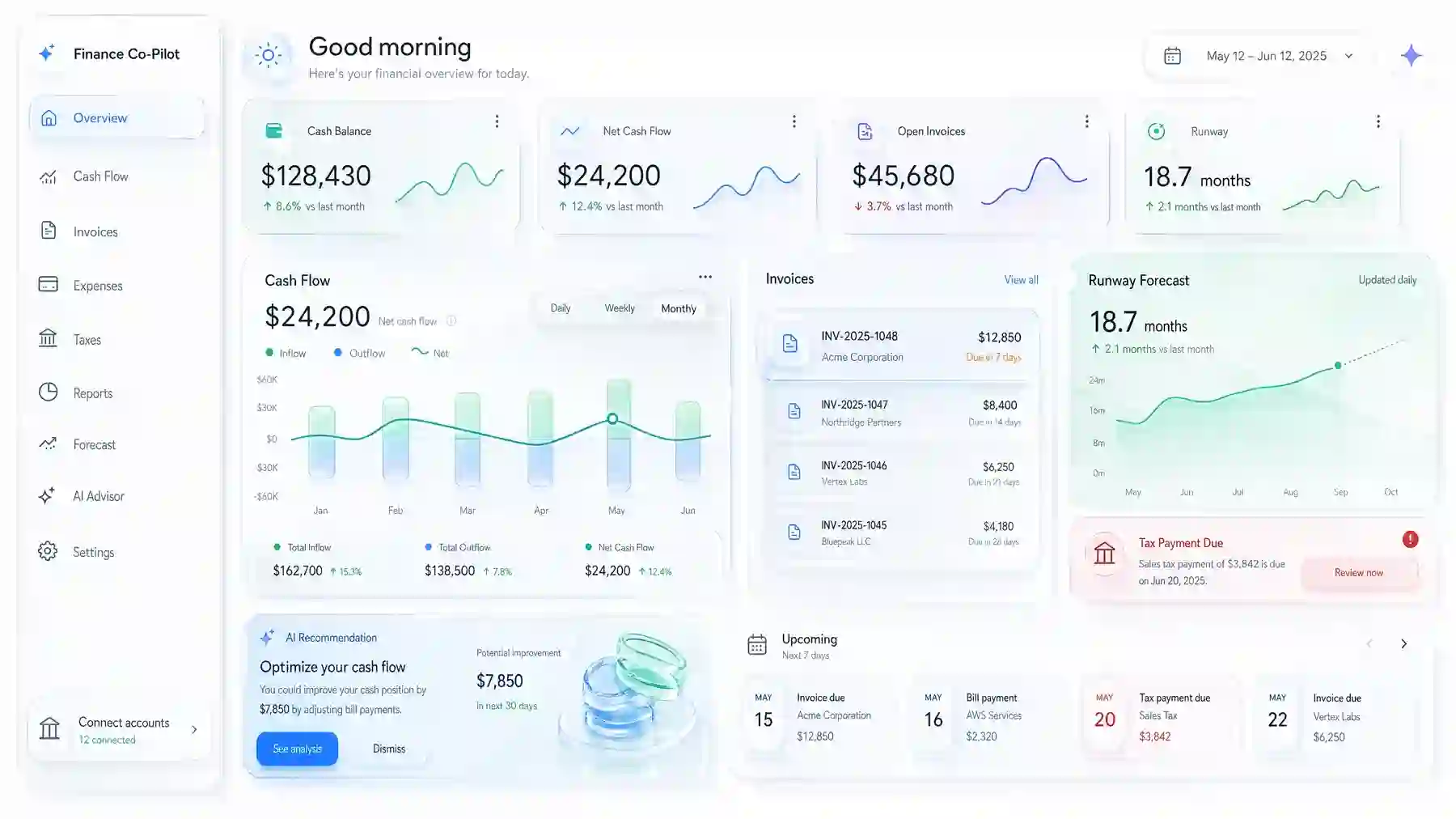
An admin panel for the work that happens after the sale: invoices, credits, refunds, and the ones a controller has to release by hand. Every row carries who changed it and when, because this is the screen an audit asks about first.
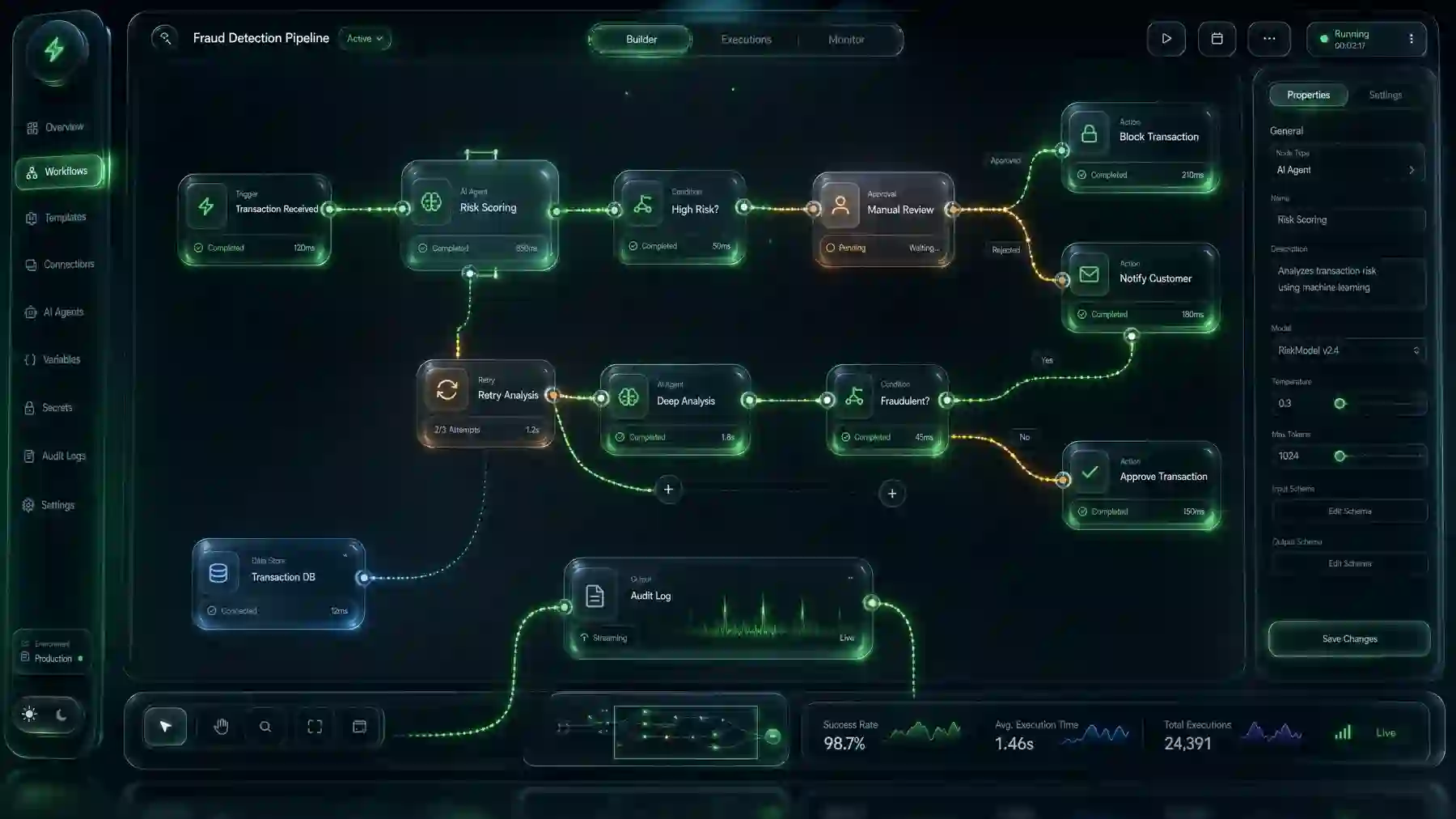
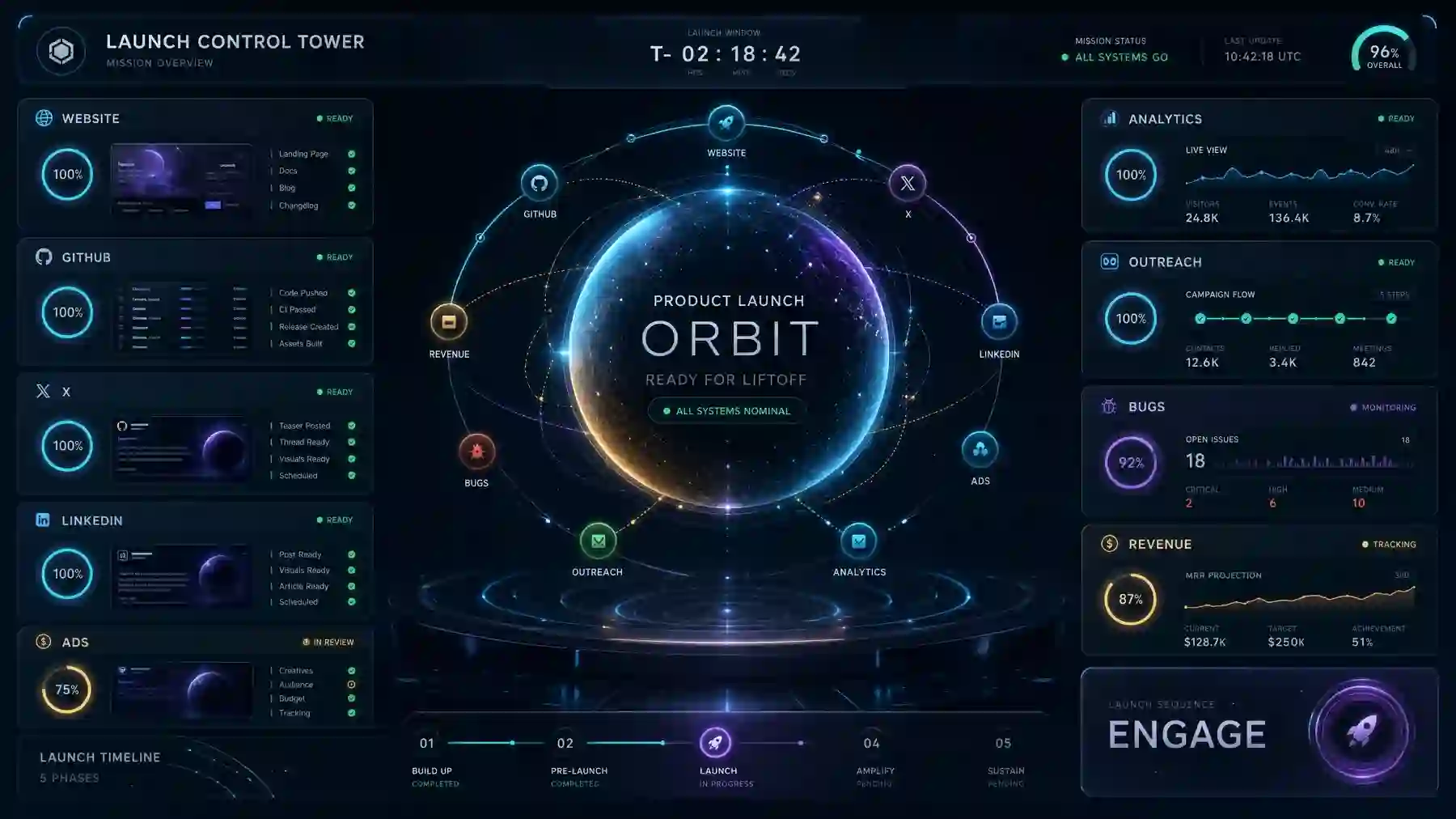
The internal tool a delivery team runs a release from: what is blocked, who owns the next step, and which checks are waiting on a person rather than on a system. One screen, so the status meeting and the team read the same state.
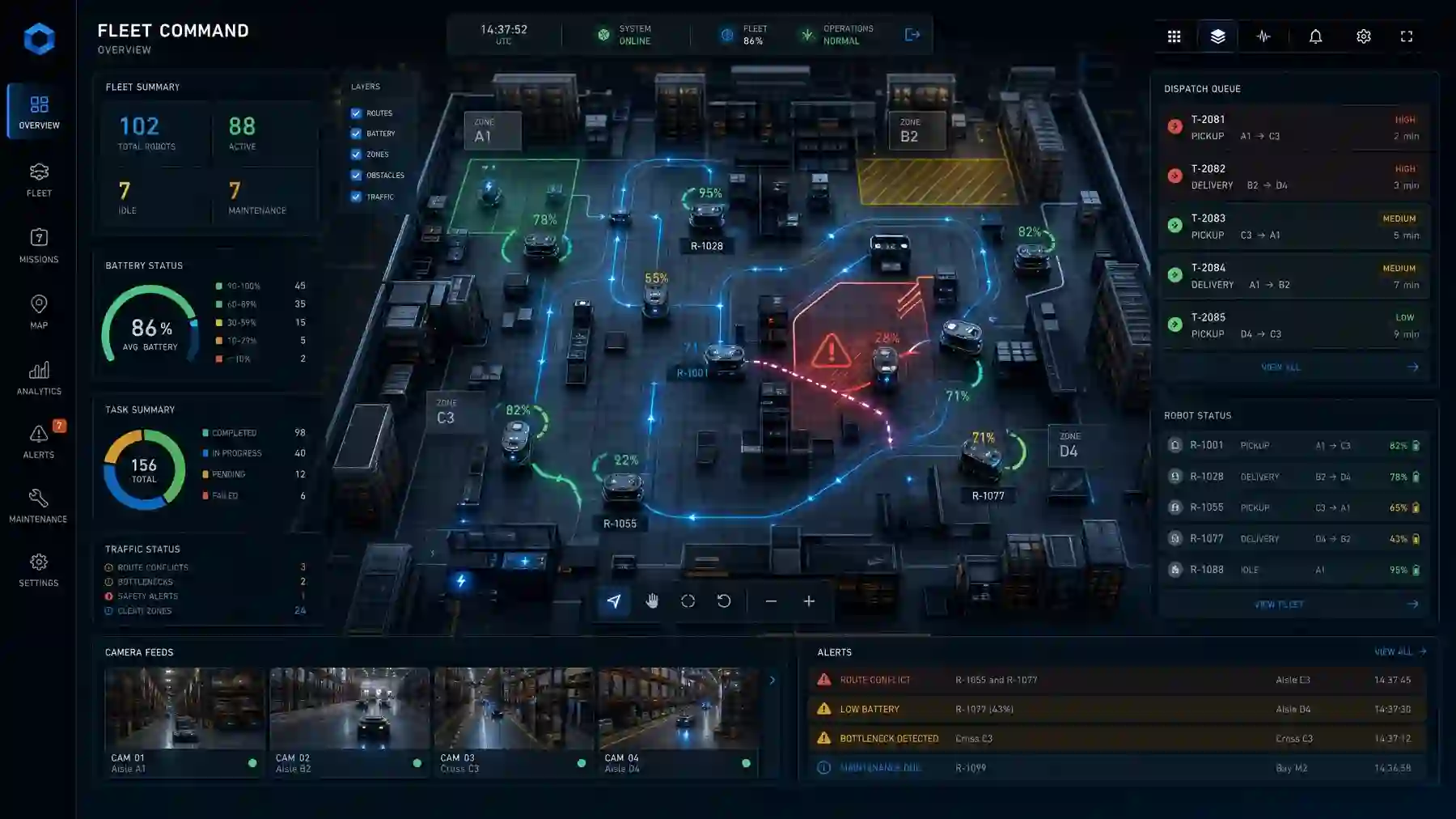
A back-office view of equipment out in the field: where each unit is, the job it is on, what it is due for. Select a group and act on all of it at once, and keep the units that failed a check in sight instead of buried somewhere in the list.
Workflow screens for an engineering team's own back office: what is waiting on a review, what the change touches, what the tests said. The approval is recorded against a named person, so the trail of who released what outlives the week it happened in.
The triage screen a support team works in all day: incoming threads grouped by what they are about and how long the customer has been waiting. Assign, merge and close in bulk, and keep one lane for the cases that need a written answer rather than a template.
An operations console that answers who may do what: which team owns each step of a process, which parts run without a person, and where a named role has to sign before the work moves on. The screen to draw when permissions are the reason a workflow stalls.
A control surface for a site that cannot stop: live readings against their thresholds, the alarms that are still open, and the manual override next to the record of who used it last. Drawn for operators on shift, not for a quarterly report.
Free 15-minute audit
Tell us the queue your team clears by hand.
Send the workflow and who sits in it. You get back the roles the screen needs, the records it has to touch, and which part of it to build first.
Send the workflow, who runs it and what it touches today. We come back with the roles, the records and the first screen to build, and you can take that plan anywhere.